
It is fairly easy to build a basic Alexa skill. So lets build a geographic one which allows you to ask Alexa which countries neighbour a stated country.
To get started you’ll need to have a standard Amazon shopping account and have signed into the Alexa Developer Console.
Anatomy of an Alexa skill
Alexa skills have a particular anatomy made up of:
1. Wake command: Word used to wake up Alexa.
2. Skill invocation: Phrase used to initiate a conversation with an Alexa skill.
3. Utterance: The words and phrases users can say to invoke an intent.
4. Intent: Actions that users can do with an Alexa skill
5. Slot: One of potentially many words associated with an intent

Create a skill
Within the Alexa Developer Console click the ‘Create Skill’ button.

In the subsequent page, give your skill a name i.e. ‘my map’ and set your default language to English (UK).
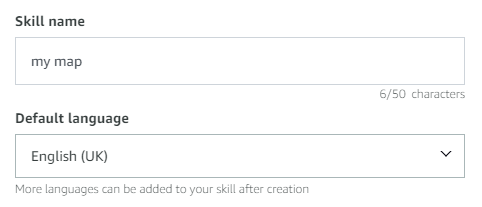
Further down the page:
1. Select ‘Custom’ in the ‘Chose a model to add to your skill’ section.
2. Select ‘Alexa-hosted (Python)’ from the ‘Choose a method to host your skill’s backend resources’ section.
3. In the top right of the page, choose a nearby ‘Hosting Region’ and click the ‘Create Skill’ button.

In the subsequent page:
1. Select ‘Start from Scratch’ from the ‘Choose a template to add to your skill’ section.
2. Click the ‘Continue with template’ button.
Once the skill has been created you are returned to a new page within the Alexa Developer Console.

Adding the country slot type
Next, a list of all the possible countries that Alexa can expect the user to say needs to be added to a slot type.
To do this click on ‘Slot Types (0)’ on the left hand side menu.

Next:
1. Click the ‘+Add Slot Type’ button and in the subsequent page, select ‘Use an existing slot type from Alexa’s built-in library’
2. Type ‘country’ into the search box.
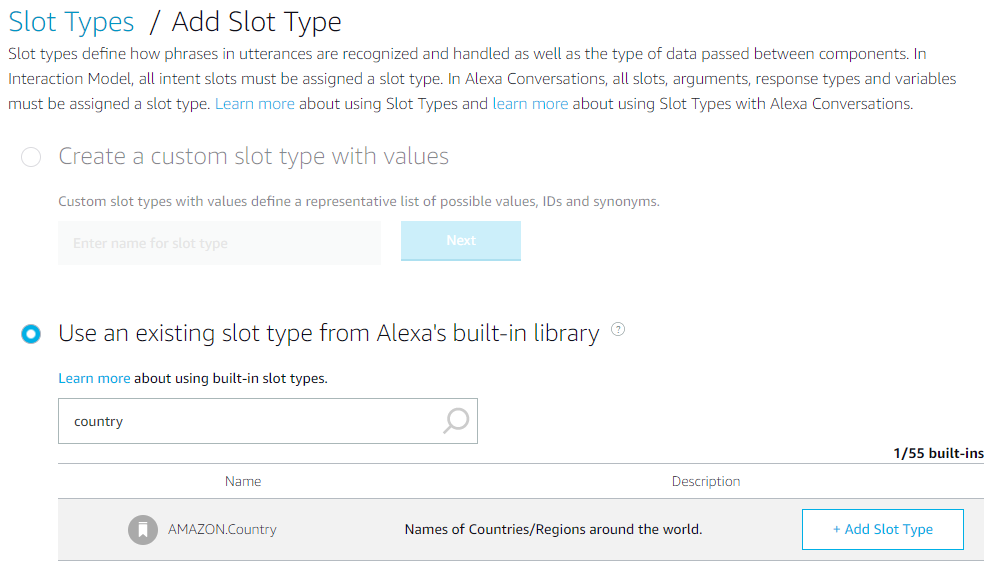
3. Click the ‘+Add Slot Type’ button to add the ‘AMAZON.Country’ slot type to your skill.
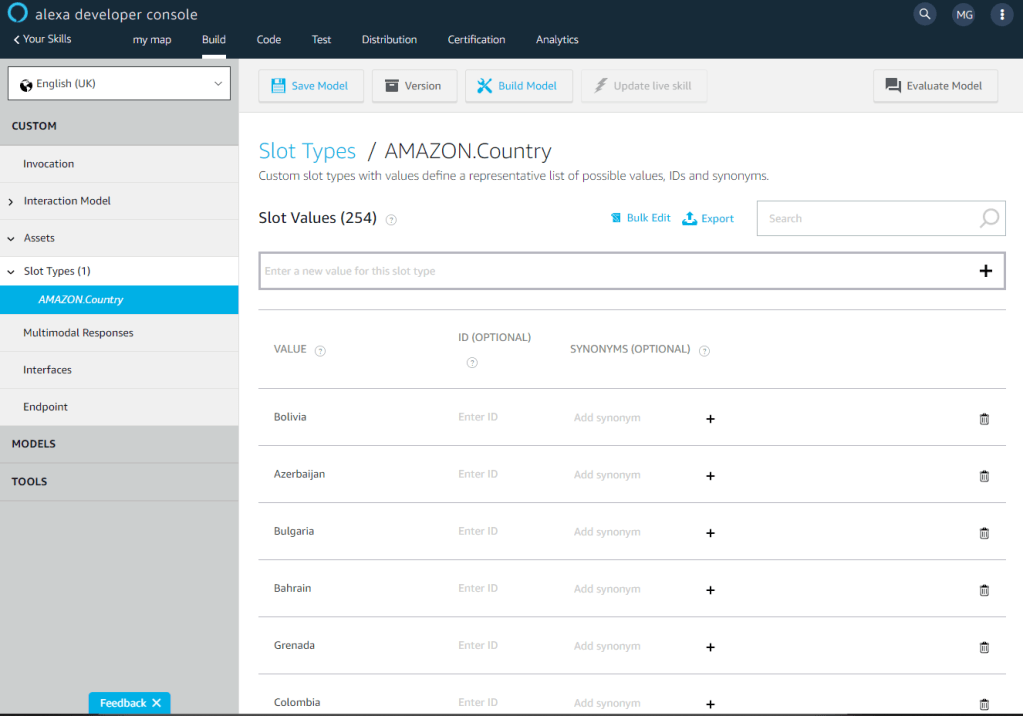
In the left hand side menu click on ‘Slot Types (1)’ and expand the menu and then click on the newly created AMAZON.country slot.

Rather than type in all the countries of the world, a country slots file has been provided. The list of countries within this file were derived from the Natural Earth Countries data using the gu_a3 attribute.
Once you have downloaded the country slot file, click on the ‘Bulk Edit’ link and the ‘Bulk Edit Slot Type Values’ dialog box should appear.
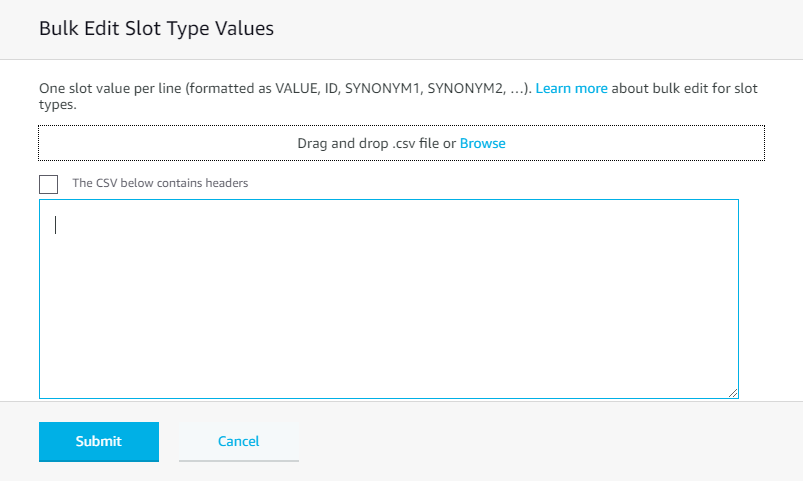
Click on the ‘Browse’ link and navigate to where you downloaded the county slots file to, select it and click ‘Open’.
All the countries should now be visible in the ‘Bulk Edit Slot Type Values’ dialog box.

Click the ‘Submit’ button to add the country slot values to your skill.
Adding the neighbour intent
To create the neighbour intent expand the ‘Interaction Model’ left hand side menu item and then expand the ‘Intents (5)’ sub menu item. Next click on the default ‘HelloWorldIntent’.
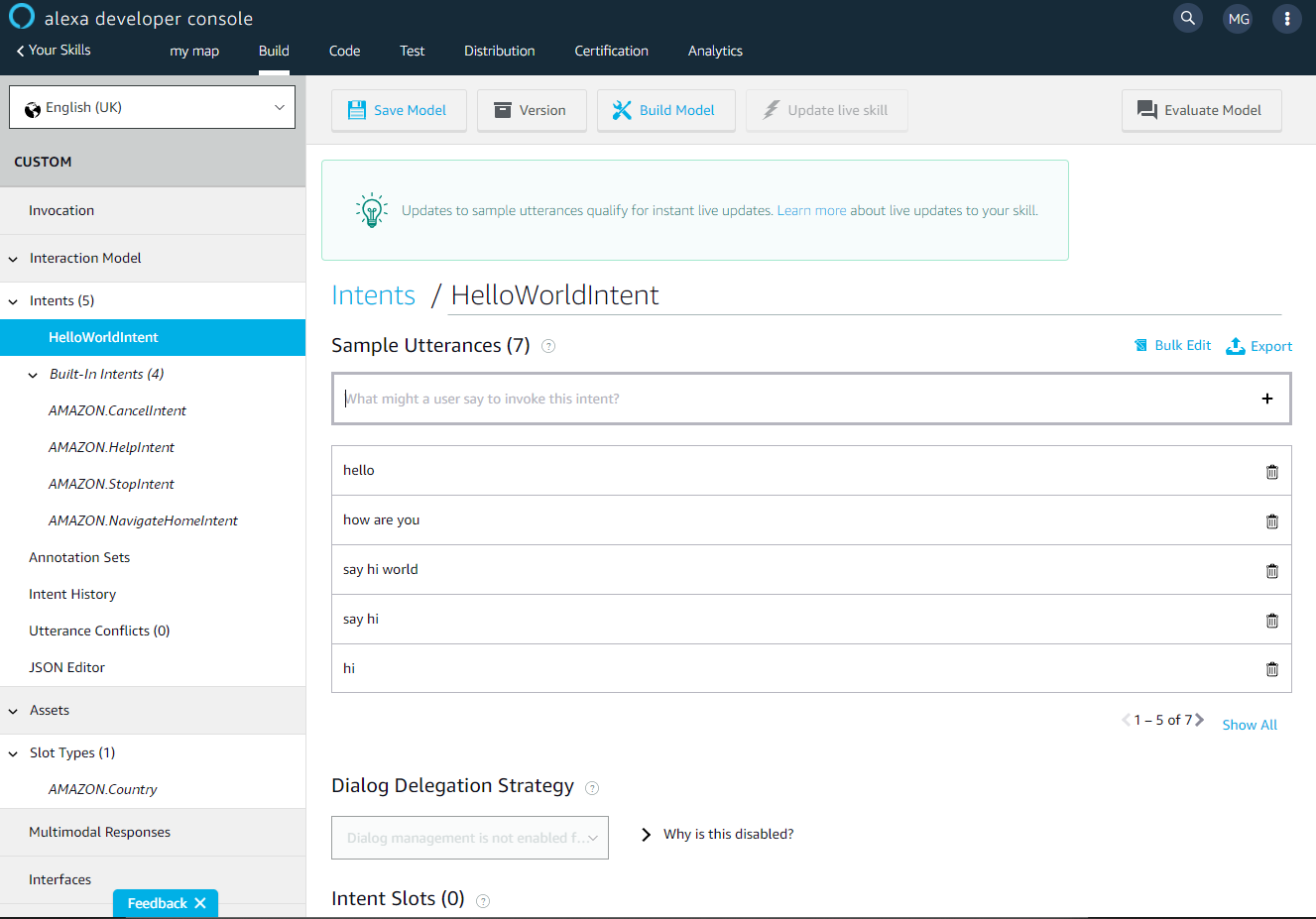
Make the following changes:
1. Change the intent name from ‘HelloWorldIntent’ to ‘NeighbourIntent’.
2. Delete the 7 sample utterances (hello, how are you, say hi world, say hi, hi) using their associated bin icons.
3. Scroll down the page to the ‘Intents Slots(0)’ section and add an intent slot called ‘country’ (clicking the small + symbol to add it) and select a slot type ‘AMAZON.country’.
4. Scroll back up the page and add a new sample utterance by typing ‘which countries neighbour {country}’ into the associated text box and clicking the + symbol on the right hand side.
The page should now look as below.

Finally:
1. Click on the ‘Save Model’ button to save all the progress made
2. Click on the ‘Build Model’ button to build the skills model.
Wait. It may take a while.
Updating the lambda_function.py code
The last part of the skill creation is to update the default python code. To access the code, click on the ‘Code’ menu item at the top of the page.

Rather than edit the existing default lambda_function.py code, new code has been provided.
To replace the existing default lambda_function.py code with the new code follow the instructions below.
1. Download the new code from here.
2. Open the file, select and copy all the new code.
3. Highlight all the existing default lambda_function.py code.
4. Paste the new code to replace the existing lambda_function.py code.
5. Click the ‘Save’ button followed by the ‘Deploy’ button.
For those that are interested, the new code does the following:
1. Adds a data structure containing every country and a pre-processed sentence (created using Oracle PL/SQL and Spatial) for Alexa to speak regarding their neighbour countries.
2. Adds a new NeighbourIntentHandler class to handle the intent spoken by the user.
3. Removes the HellowWorldIntentHandler.
Testing the skill
To test the skill:
1. Click on the ‘Test’ menu item at the top of the page.
2. Set ‘Skill test is enabled in:’ to ‘Development’.
3. In the ‘Alexa Simulator’ make sure the language is set to English (GB).
4. In the associated text box type ‘ask my map which countries neighbour nigeria’.
The ‘Alexa Simulator’ should then both speak and write out it’s response.

Try with other countries.
Next Steps
If you have an Alexa device and you have connected it to the same Amazon account as you created the skill, you should also be able to use that to evoke your skill instead of the Alexa Developer Console.
You could also publish the skill so that others can use it too, but that is outside the scope of this article.
Make sure you check Amazon’s documentation, as there are a lot more things you can do with Alexa and a lot more ways of doing them.
 geo.fyi